A guide for deputies using the ACC Cross Check app to photograph and submit players' scorecards.
As a deputy, your job is to photograph each player's scorecard with your phone or tablet. (The app runs on iPhone, iPad and Android, and always stays in portrait.) The app reads the card automatically, lets you check and fix what it read, confirms the player against the official member list, and submits the card. Your director then cross-checks everything.
You don't set up tournaments or manage results — that's the director's role. You just scan cards accurately. You have two tabs at the bottom: Scan and Account.
If your director created your account with a temporary password, sign in with that. If sign-in fails, the app tells you why — usually a wrong email or password.
Go to the Scan tab. You'll see the tournaments you've been assigned to.
Scanning a card is a short sequence:
Pick the tournament → pick the table → pick the player/seat → take the photo → review → submit.
(If a tournament has only one table, the app skips the table step and goes straight to picking a player.)
To jump back to the start, tap the Scan tab again. It returns you to the tournament list — or, if you have only one tournament, to its table list (or player list, for a one-table tournament). Cards you've already photographed keep processing. If you're partway through reviewing a card with unsaved changes, you'll be asked first.
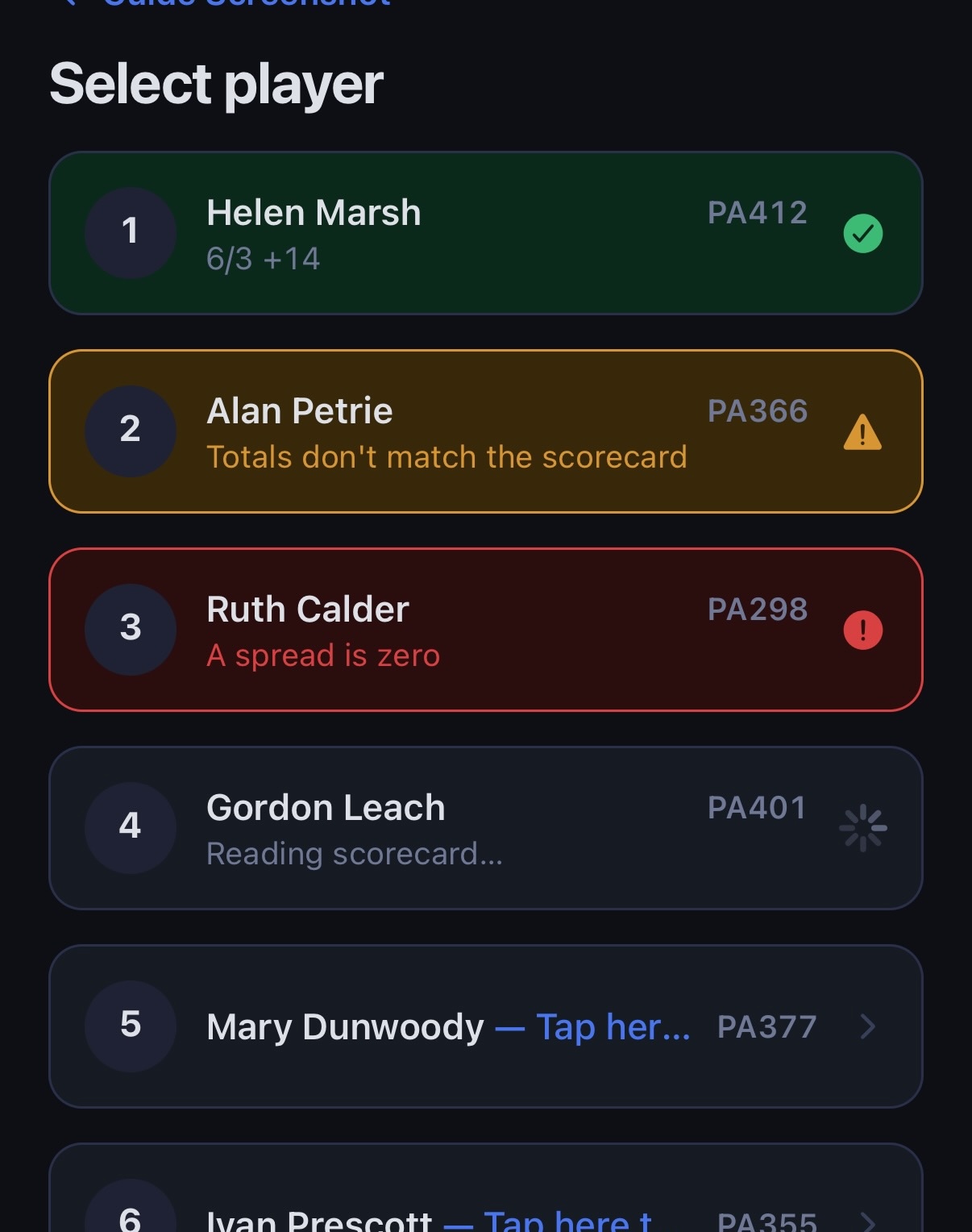
You'll see the seats/players at that table, each showing whether its card has been scanned yet. Tap the player whose card you're holding. Their seat number comes from your selection, so it doesn't have to be readable on the photo.
Empty seats. If a seat has nobody sitting in it — nobody showed, or the table's seat numbers simply weren't all used — press and hold that seat and confirm Mark empty. An empty seat grays out, is skipped for scanning, is left out of the cross-check and the standings, and can't be picked as an opponent on other cards — so it won't cause cross-check errors. To bring a seat back, tap the grayed-out seat and confirm Restore. (You can mark a seat empty even if it was already scanned by mistake — the scan is kept but ignored until you restore the seat.)
Do this for every seat at your table that nobody is playing, before you finish. A seat left unscanned and not marked empty holds up the director's cross-check.
See Tips for good scans below — a clean photo means far less fixing afterward.
While the app is processing your photo, you can move on to the next card. Multiple cards can be processed simultaneously in the background, but you must take a separate photo of each scorecard.
While the app reads each card the row shows that it's working. When it's done the row tells you where it landed:
| Row | What it means |
|---|---|
| Green, checkmark, with the score | Nothing outstanding. A card that read cleanly was submitted for you — nothing more to do. Tap it only if you want to look it over or change something. |
| Amber, warning symbol | Something wants a look, but nothing stops the card being submitted: the totals don't add up to what the player wrote, the same opponent appears twice running, or the player isn't fully identified. |
| Red, alert symbol | Either the scan didn't finish — tap to take the photo again — or the card has a problem that must be fixed before it can be submitted: a field that couldn't be read, a spread of zero, an opponent seat that isn't at this table, or game points that don't match the spread. |
The row tells you what's wrong. If there's a single problem, the row names it — "Totals don't match the scorecard", "Same opponent in consecutive games". If there's more than one, it says "Needs a look — tap to review", because naming one of several would be picking arbitrarily. A long message is trimmed to fit the line.
You'll see the same wording whether the card is still waiting for you or was already submitted — a given problem reads the same either way, so you never have to work out which state a row is in to know what it's telling you.
A clean card submits itself. The app only holds a card back when it needs you: an unreadable field, a game count that doesn't match, an impossible seat or spread, a player it couldn't confirm against the member list, or the repeated-opponent warning above. So a green row is a finished row.
To throw away a photo that's still being read, or one whose scan failed, press and hold that row and confirm. The photo and anything read from it are dropped, and nothing already saved for that seat is affected — so if you were re-scanning a card you'd already submitted, the row goes back to showing the card you saved.
When you tap the player you will see what the app read:
Anything the app couldn't read clearly is marked for you to fix. For example:
Tap any field to correct it — the name, the ACC number, a spread, or an opponent seat. Fix what you can from the card in front of you.
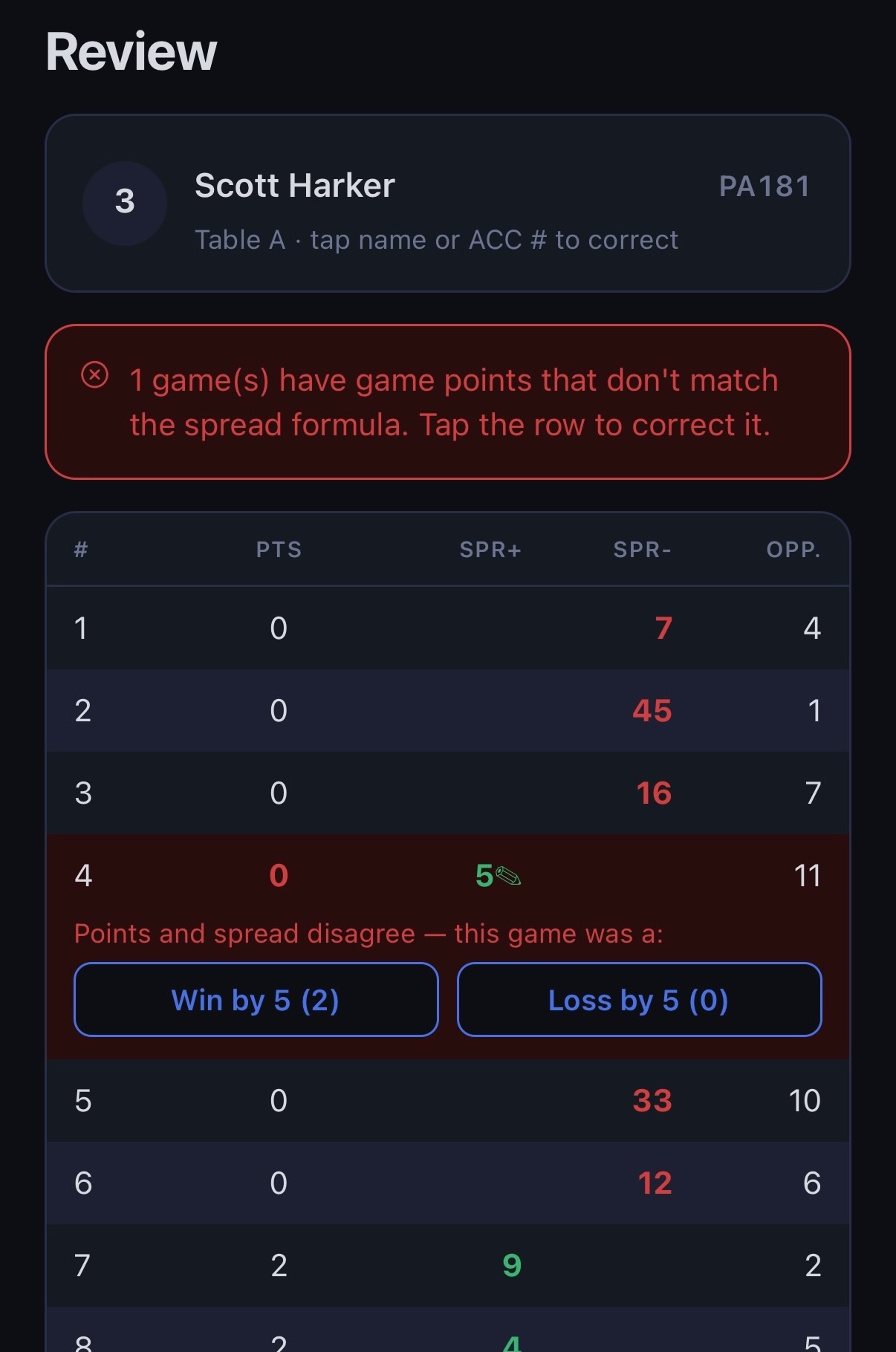
Note: Spread/game point mismatches show quick fix buttons that handle most common situations with a single tap. If not, tap the row to make multiple corrections.
Too many games? If the card shows more rows than the tournament plays — usually a note scribbled in the margin read as a game — an ✕ appears beside each row. Tap the ✕ on the row that isn't a game and confirm. The rows below renumber themselves. Only delete a row that isn't a real game; if it is a game the player played, correct it instead. (Otherwise the ✕ is offered only on the last row, and only when that row is incomplete — see Player left early.)
Player left early? If a player had to leave partway through, the games they didn't finish are blank or half filled in. An ✕ appears beside the last row while it's incomplete. Tap it and confirm, and repeat for each game they didn't finish, working up from the bottom. Rows are only ever removed from the end, so the games they did play keep their numbers. The card then shows an amber warning that it has fewer games than the tournament; that's expected, and you can submit it. A card like this is never submitted automatically — someone has to open it and confirm.
Warnings (amber). These don't stop you submitting, but they're worth a glance at the card in your hand:
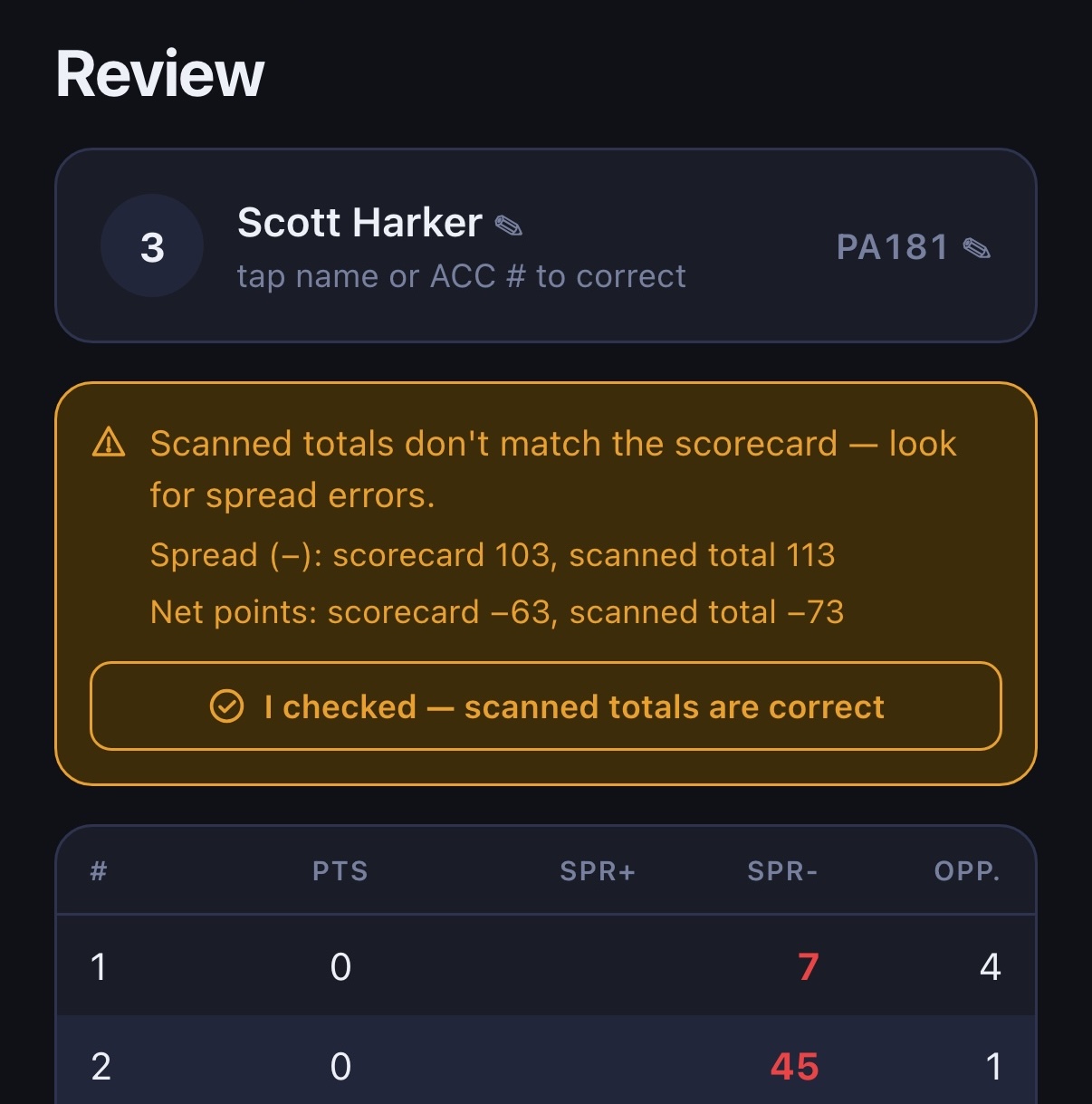
When the scan is right but a total isn't. Players add up their own cards, and sometimes get it wrong — a mis-added column, or a number written in the wrong place. The app can also misread the totals row itself: if the "scorecard" figure in the warning isn't what the card actually says, that's what happened. Either way, if you check the card and the games in the scan match it, tap I checked — scanned totals are correct on that warning. The card submits as normal and the warning stops coming back every time it's opened.
That confirmation covers the rows exactly as they stand. Change a spread or a game's points afterwards and the warning returns on its own, so nobody is left trusting a check that was made about different numbers. Never change a row you can read clearly just to make the totals agree — the card is what counts, not the total the player wrote under it.
Errors (red) must be fixed before the card can be submitted — the Submit scorecard button stays disabled until they're gone. These are: a field the app couldn't read (shown as ?), a spread of zero, an opponent seat that isn't at this table, game points that don't match the spread, a missing player name or seat, and a game count that doesn't match the tournament.
The app checks the scanned name and ACC number against the tournament's official member list and shows one of:
Two entries for the same person? The registry sometimes holds a second, incomplete record for a member, shown as No ACC # instead of a number. Members who have a number are listed first — pick one of those unless you know the player genuinely hasn't got an ACC number yet.
Not a member? Guests and brand-new players won't be in the registry. Tap Not a member — keep as guest and the card submits with the name as written, no ACC number required. Tap Undo on the banner if you tapped it by mistake. In a doubles tournament each teammate is confirmed separately, so one can be a member and the other a guest.
If the card genuinely has no ACC number, that's okay — the app asks you to confirm, and you can go ahead.
When the card looks right, submit it. Verify that the game points, games won, and spread shown for the player match the player's totals. If they don't, something on the card has been read wrongly — most often a spread — so check the game rows against the card before submitting. Occasionally the player's own total is the thing that's wrong; the rows are what count, so correct the rows to match the card, not the card to match the total — and tap I checked — scanned totals are correct so the warning doesn't follow the card around.
The player's card now shows as scanned, and you can move to the next seat. If you need to change a submitted card, just tap its row again — it reopens with everything you submitted, ready to edit and submit again.
A clear photo means the app reads the card correctly the first time and you spend less time fixing fields.
Good to know: The app understands that judges' corrections are written in red ink and players write in blue/black. A red correction is treated as the official value, so corrected cards read correctly as long as the red ink is clearly visible in your photo.
This guide lives on the Account tab. Tap Deputy guide to open the current version at crosscheck.cribbage.org. It's updated as the app changes, so there's nothing to download and no old copy to check against.
On the Account tab you'll see your role (Scanning deputy), the app version, and an Update line showing when your device last picked up a background update (or original build if it hasn't). Quote both when you report a problem. iPhone and Android count builds separately, so the number in brackets after the version can differ between the two platforms — that's normal.
If a newer update has downloaded but hasn't been applied yet, a line appears under that date — An update is ready to apply. — alongside a Restart now button. Tap it and the app restarts straight into the new version. Until you do, the date above still shows the older update, which is expected rather than a failure.
Submit your scanned cards first. Cards you've scanned but not yet submitted are only held on your phone, so restarting throws them away. Restart now will tell you how many are waiting and ask before going ahead — say no, submit them, then restart. You can Sign out when you're finished (you'll be asked to confirm). If the app says it needs camera access, allow it in your Settings so you can scan.
Tap Send feedback on the Account tab. It opens an email to us with your version details already filled in — please leave those lines in place, they tell us exactly which version you're running. Say what you were doing, what you expected, and what happened instead.
The app updates itself in the background, and a downloaded update applies the next time you open it. This means an update is always one restart behind: the time you open the app is when it fetches the new version, and the time after that is when you actually run it.
So if we've told you something is fixed and you're still seeing it, check the Update row on the Account tab. If it offers Restart now, tap that. Otherwise fully close the app and reopen it, swiping it away from your recent apps rather than just switching to another app.
| Problem | What to do |
|---|---|
| "No tournaments assigned" | Ask your director to assign you to the tournament (and to start it). |
| The camera won't open | Allow camera access for ACC Cross Check in your phone's Settings. |
| The app misread a lot of fields | Discard and retake the photo with better framing/lighting (see tips above). |
| The right player isn't in the member list | Double-check the ACC number and name you entered; correct them, then the list re-checks. |
| A spread looks wrong after reading | Tap the spread to fix its value; make sure the sign (won/lost) matches the card. |
| Submit scorecard is grayed out | A red error is still outstanding. Every red banner has to be cleared before a card can be submitted — the amber warnings don't block you. |
| You can't resolve a red error from the card | Fix it as best the card allows and submit; your director can correct spreads and opponent seats during cross-check. |
| The card has more game rows than it should | Tap the ✕ on the row that isn't a real game (see Step 4). |
| A player left before finishing their games | Tap the ✕ on the last row, once for each game they didn't finish, then submit (see Player left early). |
| The player isn't an ACC member | Tap Not a member — keep as guest. |
| A seat at your table is empty | Press and hold it and Mark empty, so it doesn't hold up the cross-check. |
| A problem we said was fixed is still there | Check the Update row on the Account tab and tap Restart now if it's offered. Otherwise fully close the app and reopen it, so a downloaded update can apply. |
ACC Cross Check — Deputy Guide — for app version 1.0.7 — updated 24 September 2026