|
|
A guide for tournament directors using the ACC Cross Check app to set up tournaments, manage deputies, and verify scorecards.
ACC Cross Check helps you run a cribbage tournament's cross-check process end to end:
There are two roles. Directors (you) set up and verify. Deputies scan cards. This guide covers the director role; deputies have their own guide.
The app runs on iPhone, iPad and Android, and always stays in portrait.
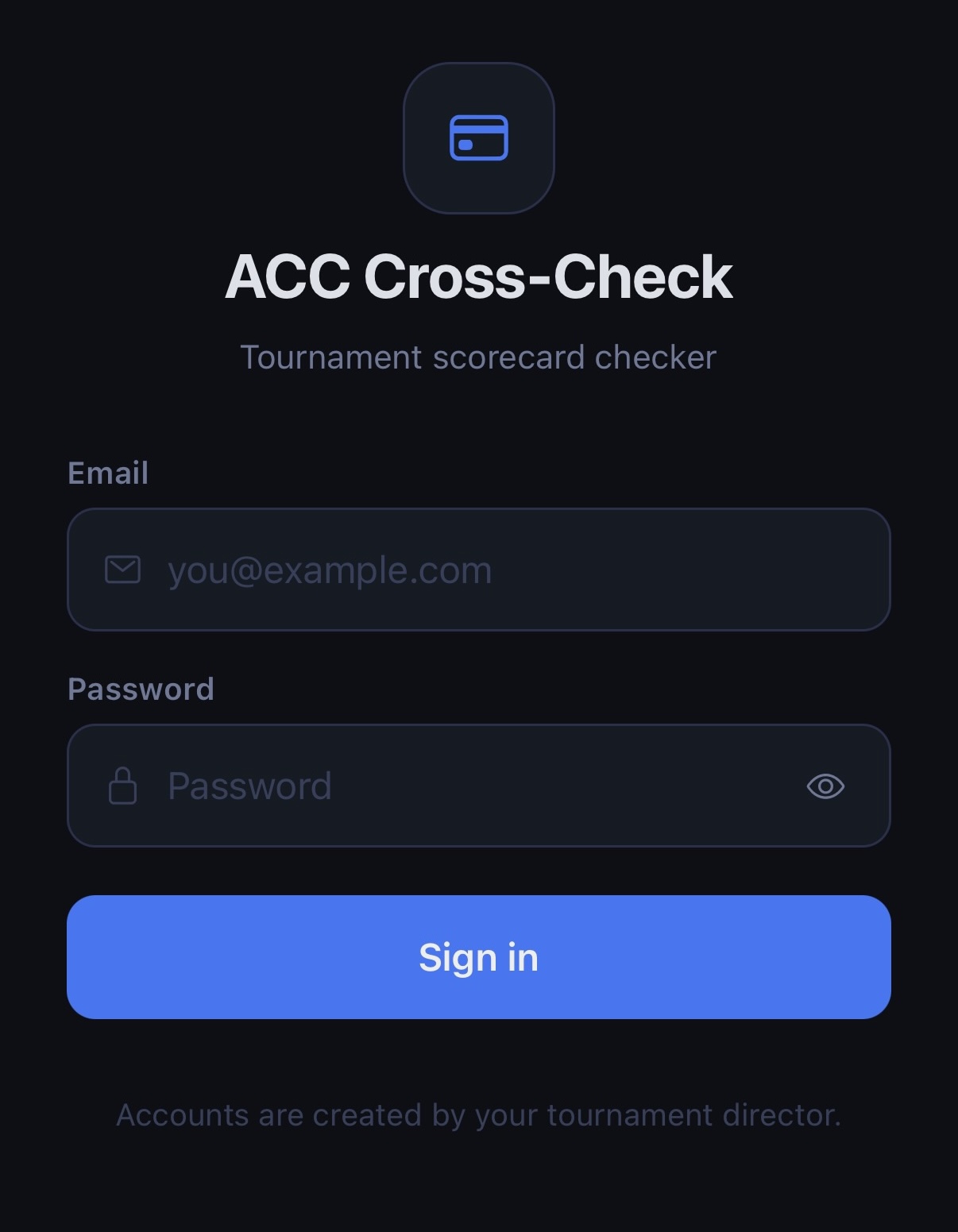
If you don't have an account yet, it must be created for you. Contact accgrprogrammer@gmail.com. If sign-in fails, the app will tell you why — most often a wrong email or password, or an address that hasn't been confirmed yet.
Your screen has four tabs along the bottom: Tournament, Scan, Deputies, and Account.
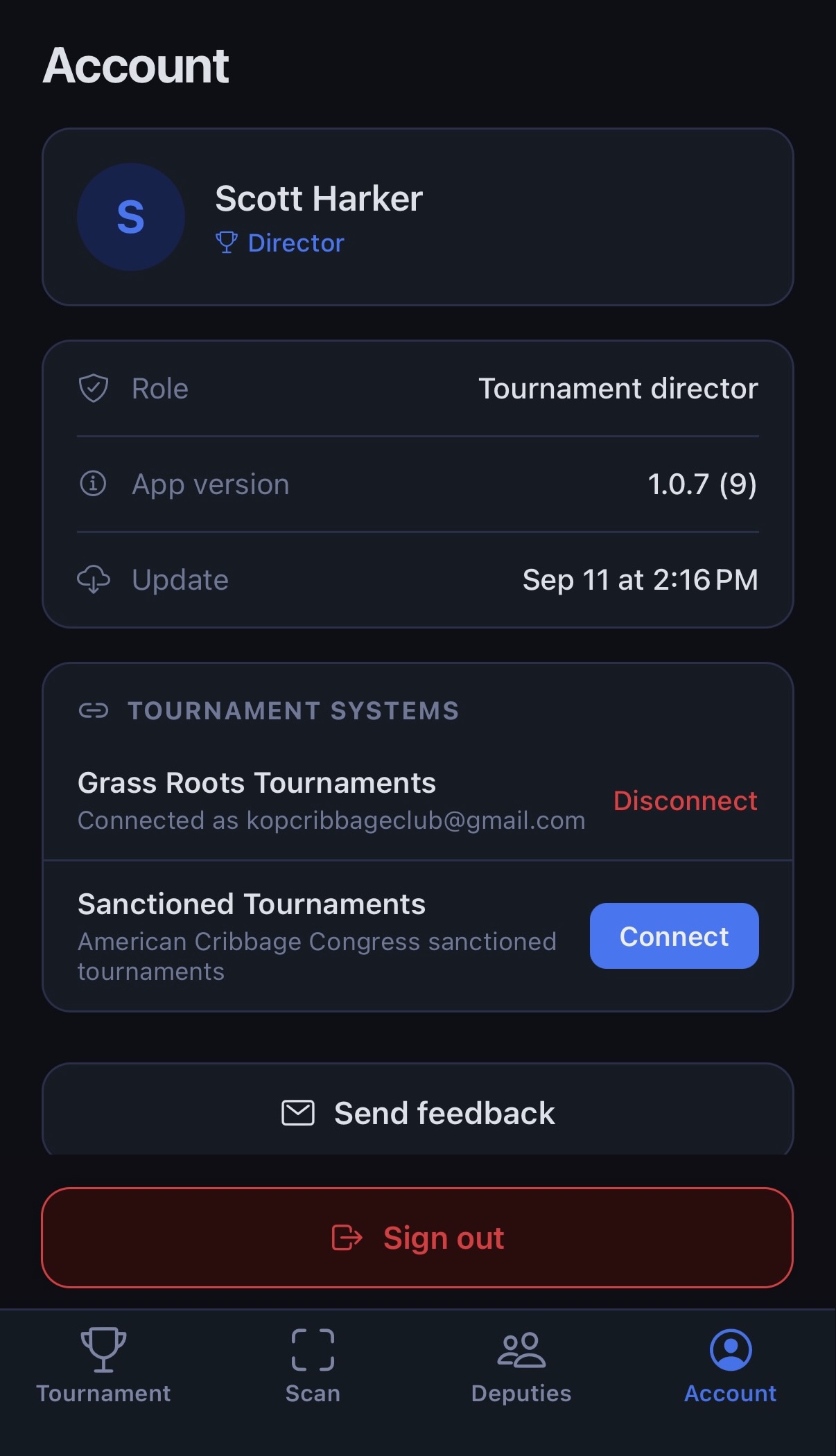
Before you can import tournaments or verify ACC numbers, connect the app to the tournament system(s) you use.
If that system later stops accepting your sign-in — usually because you changed your password there — the row says so in red and asks you to reconnect. Importing and ACC verification stay broken until you do.
A connected system shows the account it's signed in as, with a Disconnect link beside it; an unconnected one shows a short description and a Connect button. To disconnect, tap Disconnect — you'll need to re-enter your credentials to use that system again.
Why this matters: Connecting a system lets you (a) import that system's tournaments and (b) check scanned ACC numbers and names against that system's official player list. Even a one-off (ad-hoc) tournament needs a connected system to verify players against.
The Tournament tab has three sections:
Each tournament shows a status badge: Setup, Active, Validating, or Complete. Pull down to refresh the list if a tournament you just set up in a connected system hasn't appeared yet.
If you haven't connected a system yet, this section prompts you to Connect a system first.
For tournaments that aren't in a connected system:
Note: Ad-hoc tournaments still require a connected system for verification. If you have none, connect to Grass Roots or Sanctioned on the Account tab first.
After importing or creating, you'll configure the tournament's tables (and the seats at each):
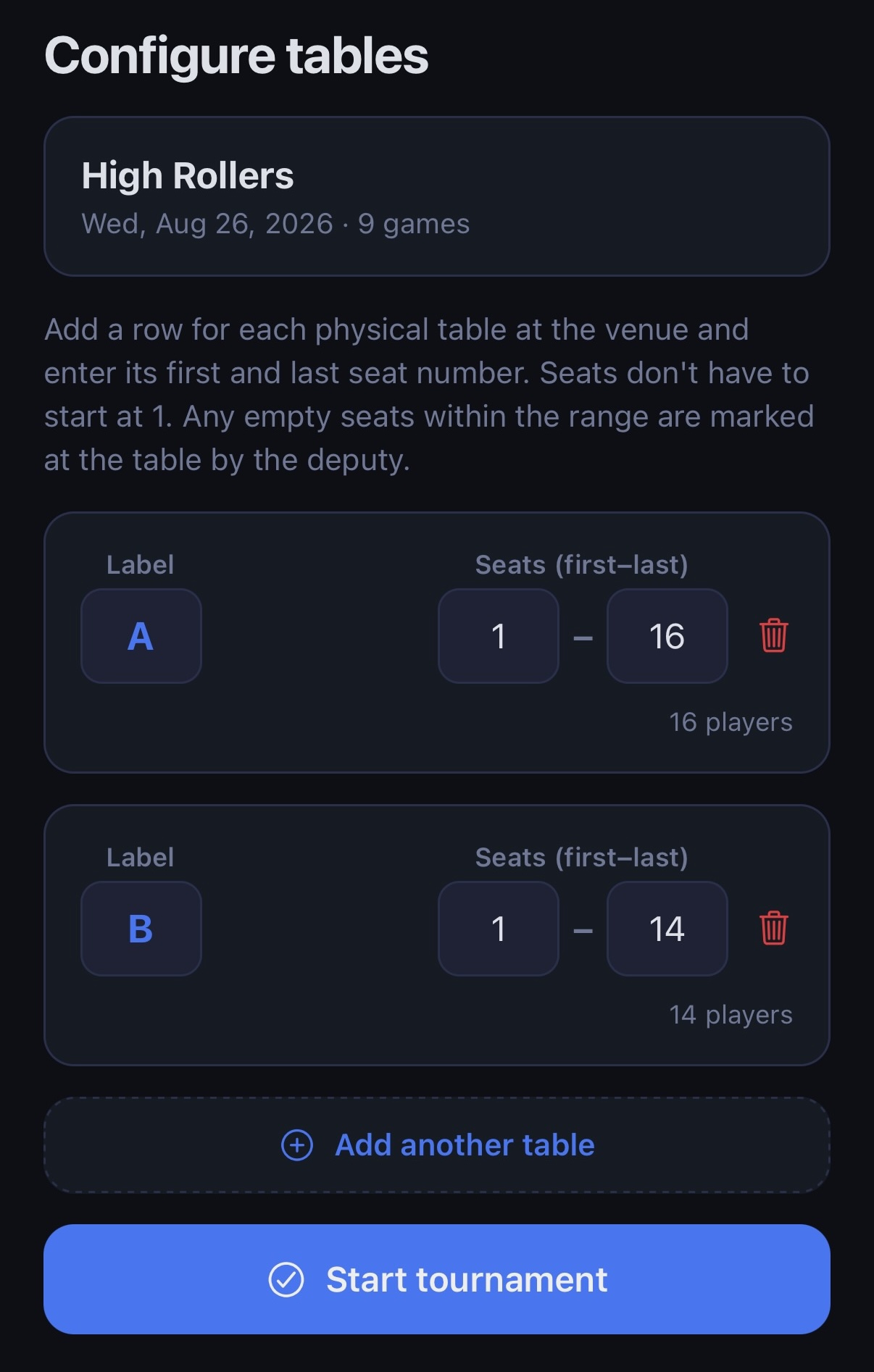
Tournaments rarely fill every seat. Which tool you use depends on where the unused seats are.
Unused seats at the end (or start) of the range — shrink the range. Say Table B was set up as 25–48 but only 25–44 were ever seated. Open Edit tables, change Table B's last seat to 44, and Save changes. Seats 45–48 are removed from the tournament entirely — they disappear from the deputy's list, from the cross-check, and from the standings. The same works on the first seat: raise it to drop unused seats at the front.
Unused seats in the middle — the deputy marks them empty. A table's seats are a single first-to-last range, so a hole in the middle (say seats 33 and 34 at a 25–48 table) can't be trimmed away here. Instead the seat is marked empty at the table: press and hold the seat in the scanning list and confirm Mark empty. The seat grays out, is skipped for scanning, is excluded from cross-check and standings, and can't be picked as an opponent on anyone else's card. Tapping a grayed-out seat restores it. Deputies do this as they work the table (see the Deputy Guide), and you can do it yourself on the Scan tab — see You are your own deputy below.
Removing a whole table. Tap the trash icon on that table's row in Edit tables and confirm, then Save changes. This removes the table, its seats, and anything scanned at them.
⚠️ Editing tables after scanning has begun: If you shrink a seat range, remove a table, or otherwise drop a seat that already has a scanned card, the app warns that scanned cards will be lost and tells you how many. Their scans can't be recovered, so only continue if you're sure. Marking a seat empty is the safe alternative — it keeps the scan and just excludes the seat, and you can undo it.
Note: Any change to the tables or seats after a cross-check clears the previous validation report, since it no longer describes the tournament. Run the cross-check again.
Tap the trash icon on a tournament's card in the In progress or Completed list and confirm. The icon turns into a spinner while the delete runs, which can take a few seconds for a large tournament, and the card disappears when it's done. The tournament, its tables, cards and scans are removed from Cross Check. An imported tournament is not deleted from the connected system — it reappears under Available to import if you want to start over.
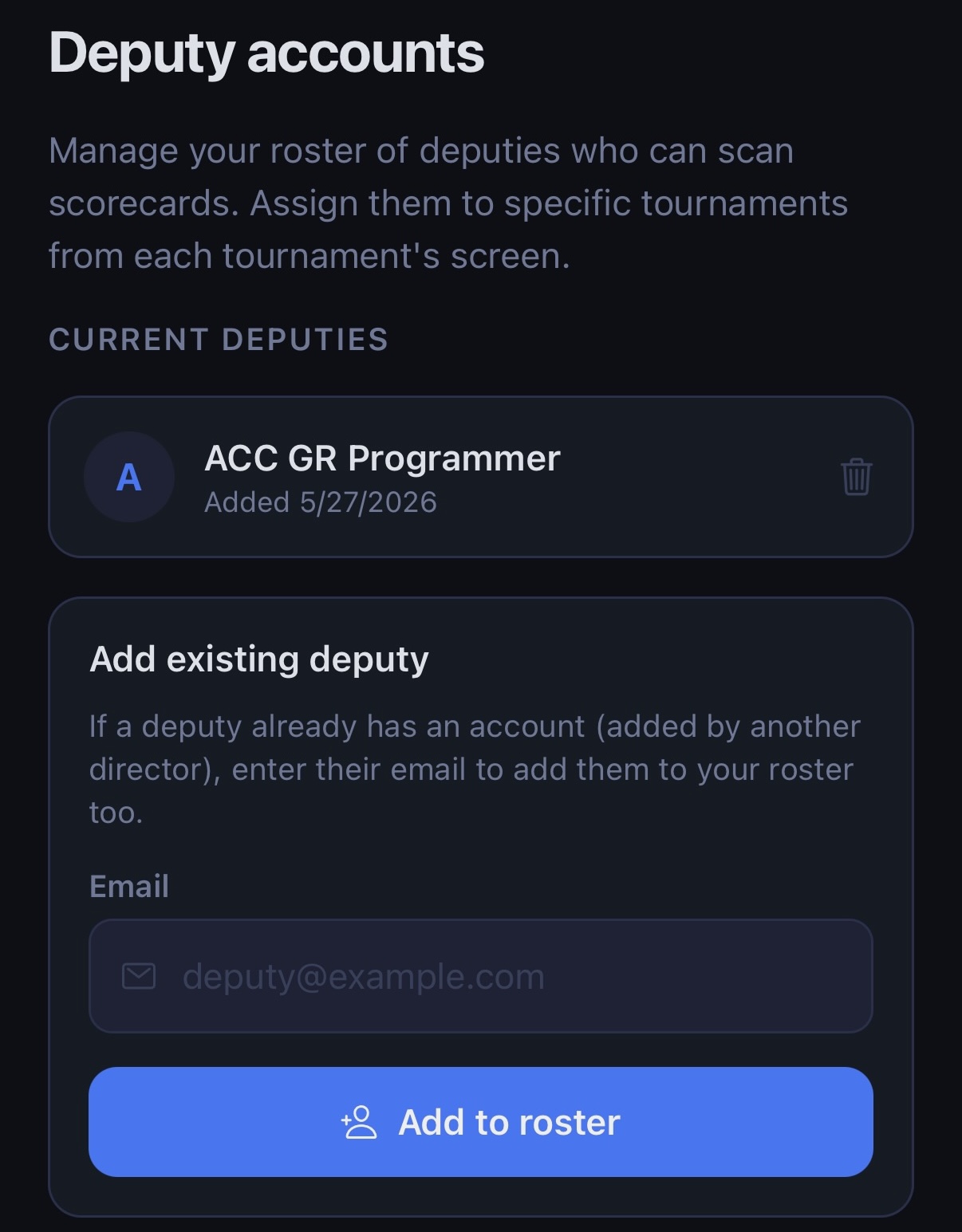
Deputies are the people who scan scorecards. Manage deputy accounts on the Deputies tab, and assign them to your tournaments on the Tournament tab.
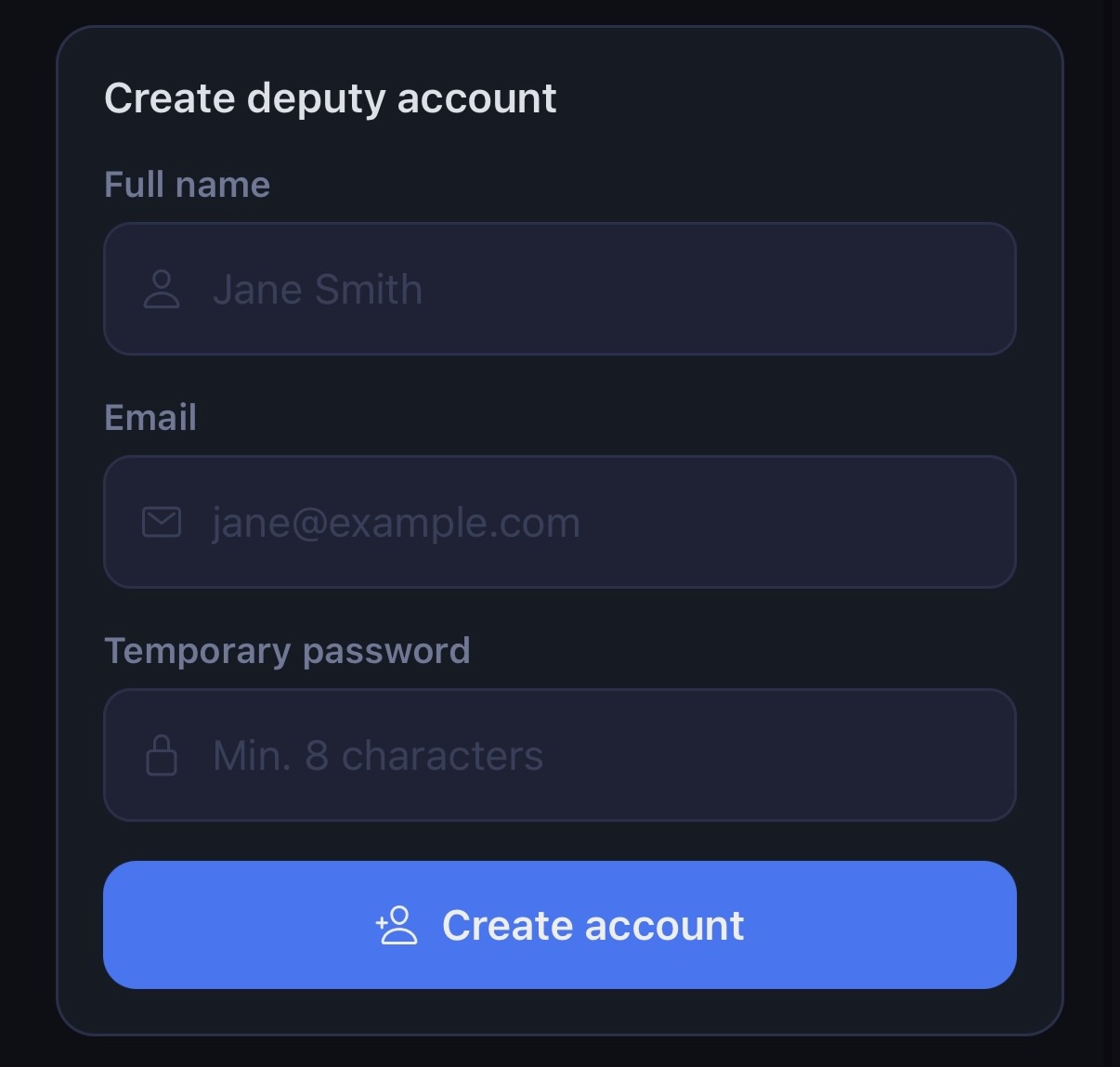
On the Deputies tab, you can either create a brand-new account or add someone who already has one:
To remove a deputy, use the remove action on their entry.
|
|
|
To assign deputies to a tournament, go to the Tournament tab and open your tournament. Use the Assign deputies link at the top to add deputies to your tournament. When the deputy logs in they will see your tournament in their list. (A deputy with no assignments sees an empty list telling them to ask their director.)
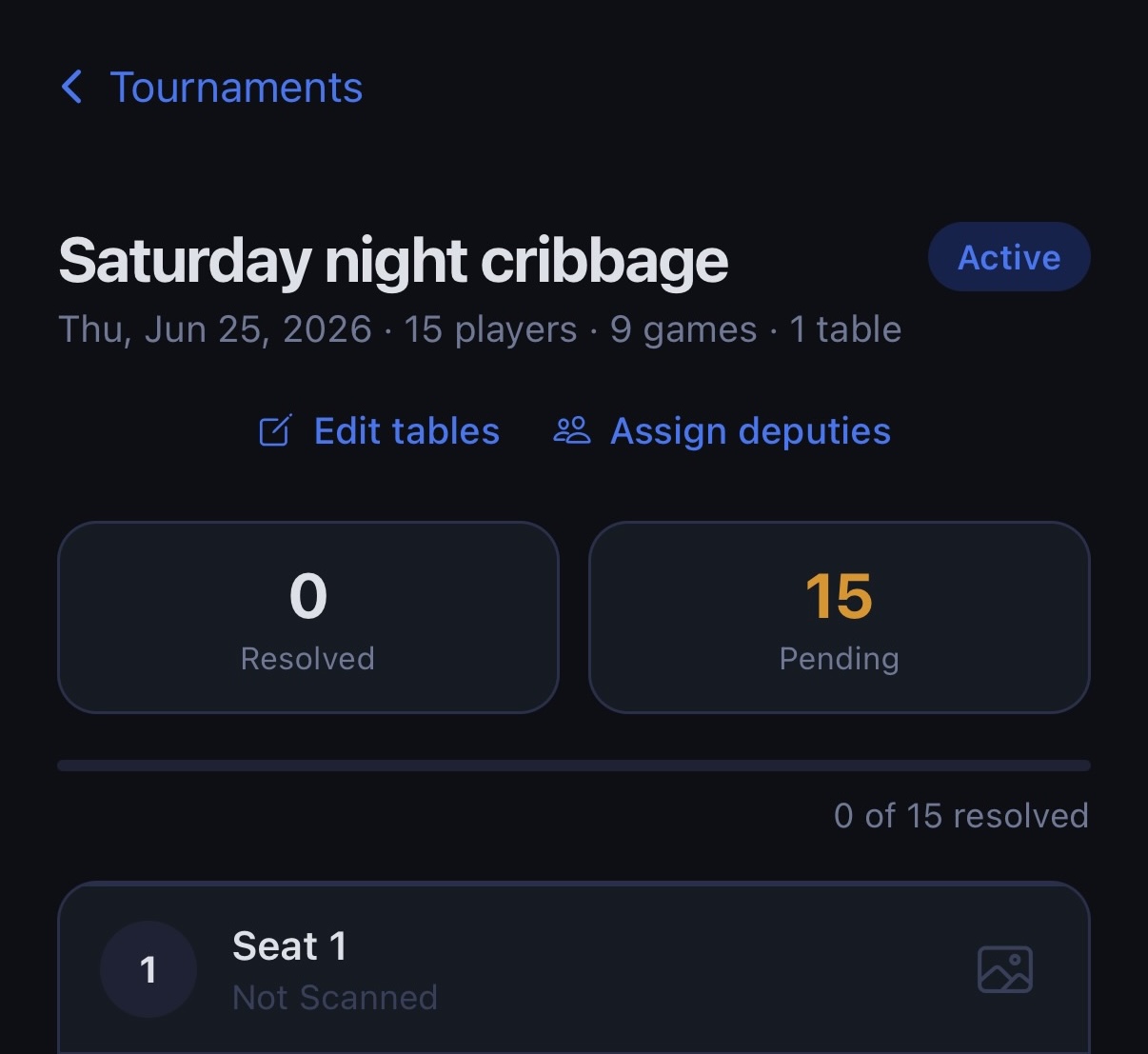
For every tournament you direct, you can also act as a deputy and scan scorecards yourself. You don't need to assign yourself to the tournament – it's automatic. Just tap the Scan tab, and tap Tournament to go back. Switching tabs keeps your place on each; tapping the tab you're already on takes it back to its first screen. It works exactly as it does for a deputy — the Deputy Guide has the details.
Scans you've started keep going while you're on another tab, so you can photograph a few cards, check the cross-check report, and come back to find them finished.
The Scan tab is also where you mark a seat empty or restore it, if you'd rather do that yourself than ask a deputy.
Reopening a card you've already submitted. Selecting a player whose card is already scanned doesn't start the camera again — it opens that card's saved values for editing, exactly as they were when it was submitted. Change what needs changing and submit again. This works at any time before the tournament is marked complete, and it's the way back into a card when the cross-check report won't let you at the value you need to change.
The totals check runs again when you reopen a card. The app keeps the totals the player wrote at the foot of the scorecard, so it can compare them against the rows every time the card is opened — not only at the moment it was first scanned. That matters when you fix one misread value and another is still wrong: the warning stays until the rows genuinely add up to what the player wrote.
The warning lists each total that differs, with what the app read on the scorecard next to the scanned total. If you check the card and the scan matches it — players do mis-add their own cards, and the app can misread the totals row itself — tap I checked — scanned totals are correct and the warning stops reappearing. It covers the rows as they stand, so editing a spread afterwards brings it back. In the seat list, a card in this state shows amber rather than green until it's resolved or confirmed. Never edit a row you can read clearly just to make a total agree: a card whose totals reconcile is not the same as a card that's right, and the scorecard itself is the only source of truth.
Open a tournament from the In progress list to see its detail screen.
Across the top: the number of players (or teams), the Assign deputies link, and — while scanning is still under way — Resolved and Pending tiles, a Warnings tile whenever something needs a look, and a progress bar showing how many cards are resolved out of the total.
Below that, every seat has a row showing the player's name and ACC number (both names and numbers in a doubles tournament) and either:
A row picks up a tag when something wants your attention:
| Tag | What it means |
|---|---|
| table mismatch | The table letter written on the card isn't the table it was scanned under. |
| opp. mismatch | An opponent seat on this card carries a different table's letter. |
| n pt errors | n games whose game points don't match their spread. |
| left after game n | The player left the tournament early, so the card has only n games. Not an error; it's there so a short card isn't a surprise. |
Tap the image icon on any row to view that card's scan; pinch to zoom in on the handwriting (on the web version, use the + / − buttons). Rows whose card was never scanned have no image.
In a multi-table tournament each table is its own collapsible section, with a progress bar and a resolved / total count you can read without expanding it. Tap the header to open or close a table.
Cross-check runs table by table, and only on tables where every card is resolved — so you can start reconciling your first table while the rest of the room is still playing.
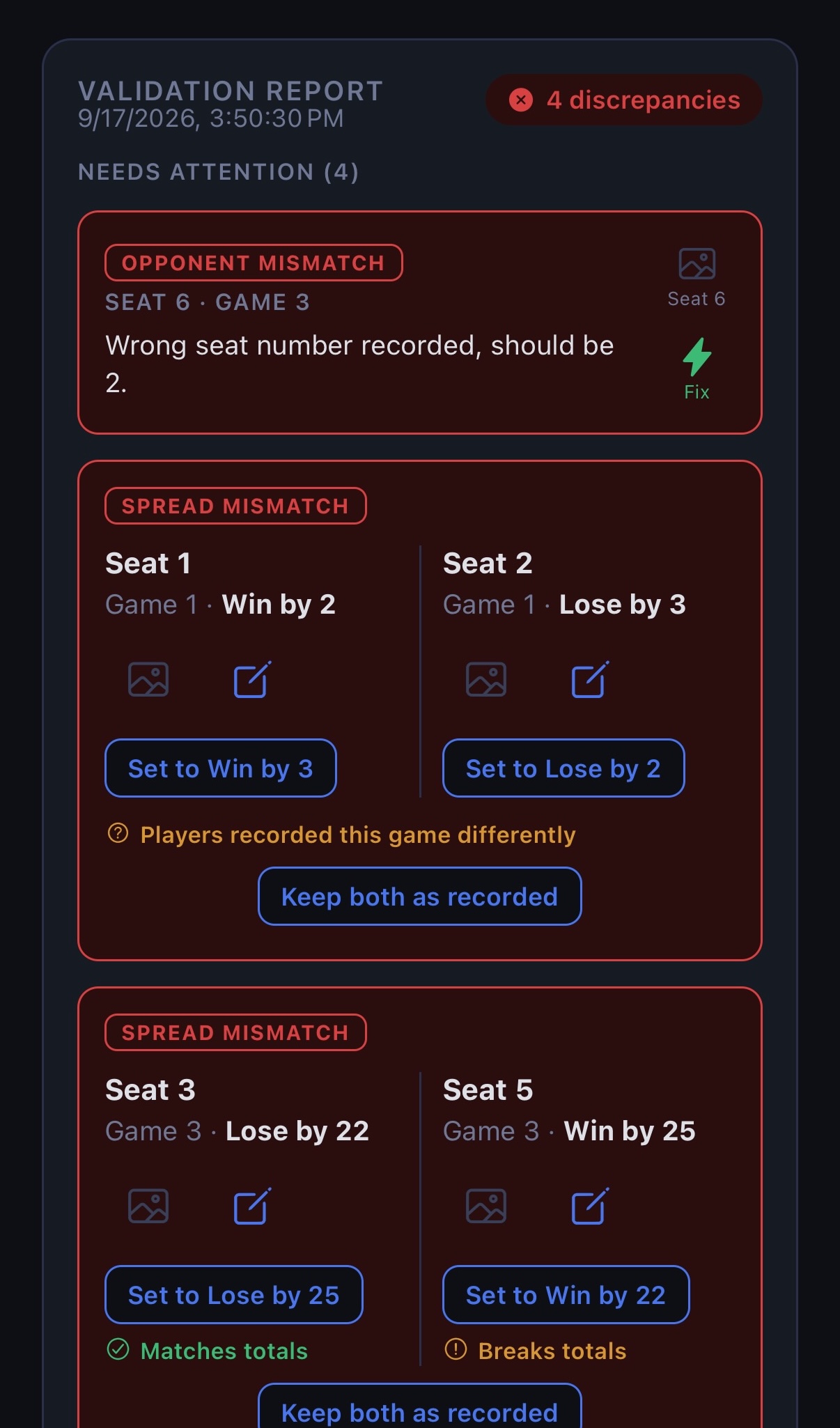
The app compares every card against its opponents' and reports what doesn't reconcile. When everything reconciles you'll see All clear; otherwise the report lists the problems under Needs attention, with any Extra games noted separately below them. Those are usually expected and need no fix, but you can correct one if it's wrong. They show in amber while the tournament is open, and turn gray once it's marked complete.
If a card changes after the cross-check — a deputy re-scans it, or someone reopens and resubmits it — the report is out of date, so the app removes it and shows a warning above the Run cross-check validation button that scores have changed. Tap the button to produce a fresh report. Fixes you make from the report itself re-run the check on their own, so they don't trigger this.
Cross-check surfaces issues like these, most with a one-tap fix:
| Issue | What it means | Typical fix |
|---|---|---|
| Opponent mismatch | Both players agree on the score, but the opponent's card names a different seat as who they played | Tap Fix on the opponent's card — one tap points it at the right seat |
| Spread mismatch | Both players agree they played each other, but their spreads don't cancel out (they don't sum to zero) | Tap the Set to… chip under whichever card is wrong, or open the card with the pencil icon and correct the spread. If the rules settle it another way, see When the rules leave the cards different |
| Opponents swapped | Two games on a card have their opponents transposed — usually the scan read the right seats on the wrong rows | Tap Swap — one tap fixes both games |
| No match | A player recorded a game against a seat, but nothing on that seat's card matches it | Open both cards; correct the opponent seat or spread, or have the card re-scanned |
| Extra game | A player's opponent didn't record the game — happens with an odd number of players, where one or more need an extra game | Usually no fix needed if that opponent had already played all their games. If they wrote the wrong seat number on this card, tap the pencil icon and correct it |
| Settled by rule | A spread mismatch you resolved according to the rules, leaving spreads that don't cancel out | None. It's listed for the record, and doesn't stop the cross-check passing. Tap Reopen if the ruling was wrong |
A player who left early. Deputies remove the games the player didn't finish, so their card holds only the games they played. Re-pair the rest of that table as you would an odd-numbered table: the cross-check allows for the resulting sit-outs, and a game played to make up for one can show under Extra games. Don't have opponents record games against the seat of the player who left. Nothing on that player's card can match them, so the report lists them as No match.
When several cards have the same opponent-seat problem, a Fix all n opponent mismatches button appears above the list and applies the recommended fix to all of them at once.
Which card to change in a spread mismatch. Under each Set to… chip, the app may add a short note saying whether that change would bring that player's handwritten totals closer or push them further away, and the confirmation repeats it when you tap the chip. Players tally their own cards independently, so a change that fits a player's totals is good evidence that card is the one that was misread. It's a clue, not a verdict — players do mis-add — so look at both scans before you tap. When the totals can't tell either way, no note appears. And when each player recorded the game differently but both added up their own card correctly, either change would break a player's totals, so one note below both cards says so instead. The paper cards genuinely disagree, so resolve it using the ACC rules for scorecard discrepancies, which say not to consult the players.
When the rules leave the cards different. First make sure the scan matches the paper: a spread mismatch is often just a misread. When the paper cards themselves disagree, the ACC rules for scorecard discrepancies decide, and some of its outcomes leave spreads that don't cancel out. Each spread mismatch has buttons for these:
The game then moves to Settled by rule, where the card says how it was settled — accepted as recorded, or a loss for both — and no longer stops the tournament from passing. Editing either card's spread or seat, or re-scanning either card, cancels the ruling and the game shows as a spread mismatch again.
Each discrepancy shows both sides' cards; tap either one to view that scan, with a caption telling you exactly which value to look at. When you edit a spread or seat, the app re-checks against the opponent's card. Game points are recalculated automatically from the spread. If a card has no opponent record to compare against, update its opponent seat so a re-check can find the match.
Tip: Spreads should sum to zero between the two players in a game (one player's +7 is the other's −7). The cross-check is built around this, so most fixes are about getting the spread's value and sign right.
Mark tournament complete appears at the bottom of the validation report, but only once the cross-check is All clear and every card in the tournament is resolved. If you can't see the button, something is still outstanding — a card changed since the last cross-check (a warning above Run cross-check validation will say so), or check for unscanned seats (seats nobody used should be trimmed or marked empty) and re-run the cross-check.
Marking complete locks all scorecards so they can't be changed. This cannot be undone, so the app asks you to confirm.
Once a tournament is complete, a toggle appears above the results:
Cross Check does not write anything back to the ACC databases. Marking a tournament complete finishes the cross-check; it does not submit results. Enter the standings into your tournament system exactly as you always have. The app's job is to make sure the numbers you enter are right.
Both guides live on the Account tab. Tap Director guide or Deputy guide to open the current version at crosscheck.cribbage.org. They're updated as the app changes, so there's nothing to download — point deputies at the link rather than sending them a copy.
On the Account tab you can see your role (Tournament director), the app version, and manage your connected systems. Tap Sign out when you're done (you'll be asked to confirm).
The app version reads like 1.0.7 (9) — the second number is the build. Both matter when you report a problem, so quote the whole thing. iPhone and Android count builds separately, so the same app version can show a different number in brackets on the two platforms. That's normal and not a sign anything is wrong.
Below it, Update shows when this device last picked up a background update — a date and time, or original build if it's still running the code the app shipped with. That's how you tell whether a fix has actually reached you, since the version number above doesn't move for an over-the-air fix.
If a newer update has already downloaded but hasn't been applied yet, a line appears under that date — An update is ready to apply. — alongside a Restart now button. Tap it and the app restarts straight into the new version. Until you do, the date above still shows the older update, which is expected rather than a failure. You may also briefly see Downloading an update… while one is being fetched.
If you're part-way through scanning, Restart now will tell you how many scanned cards haven't been submitted yet and ask before going ahead — restarting discards them, so submit them first if you want to keep them.
Tap Send feedback on the Account tab. It opens an email to us with your version details already filled in — please leave those lines in place. Tell us what you were doing, what you expected, and what happened instead.
The app updates itself in the background, and a downloaded update applies the next time you open it. This means an update is always one restart behind: the time you open the app is when it fetches the new version, and the time after that is when you actually run it.
So if we've told you something is fixed and you're still seeing it, check the Update row on the Account tab. If it offers Restart now, tap that — it's the quickest route. Otherwise fully close the app and reopen it, swiping it away from your recent apps rather than just switching to another app.
If the date on that row still hasn't moved after two restarts, tell us.
| Problem | What to check |
|---|---|
| Can't import any tournaments | Make sure a system is connected on the Account tab. |
| A deputy says they see no tournaments | Confirm you've assigned them to the tournament and that it's been started. |
| ACC numbers aren't being recognized | Confirm the tournament's member list for ACC verification points at the right connected system. |
| Cross-check keeps flagging a card with no opponent | Fix that card's opponent seat so the re-check can find the matching card. |
| Run cross-check validation is grayed out | No table is fully scanned yet. Every card at a table must be resolved before that table can be checked. |
| A seat nobody sat in is stuck at Pending | Trim it out of the table's seat range (if it's at the start or end), or have it marked empty at the table. |
| Mark complete doesn't appear | It shows only when the cross-check passes, every card is resolved, and no card has changed since the cross-check ran. If a warning above the button says scores have changed, tap Run cross-check validation again. |
| A system says it won't accept your sign-in | Your password there has probably changed since you connected. On the Account tab, Disconnect from that system and connect again with your current email and password for it. This is separate from your Cross Check sign-in. |
| Sign-in problems | Re-check email/password; confirm your email address is verified. |
If something looks wrong with a scanned card itself (a misread number, a wrong opponent), you can fix it from the tournament detail screen, or ask the deputy to re-scan that card.
ACC Cross Check — Director Guide — for app version 1.0.7 — updated 24 September 2026